 First Steps
|
<< Click to Display Table of Contents >> Navigation: Installation >
|
After installing the printer driver and the eXtra4<win4> software on your computer's hard drive
the system has to be set up according to your individual requirements (printers/labels/layouts) in the following steps
- Activation of the software
- Setting up the connected printer
- Installing the label layouts
User guidance
The user guide will walk you through these steps immediately after installation.
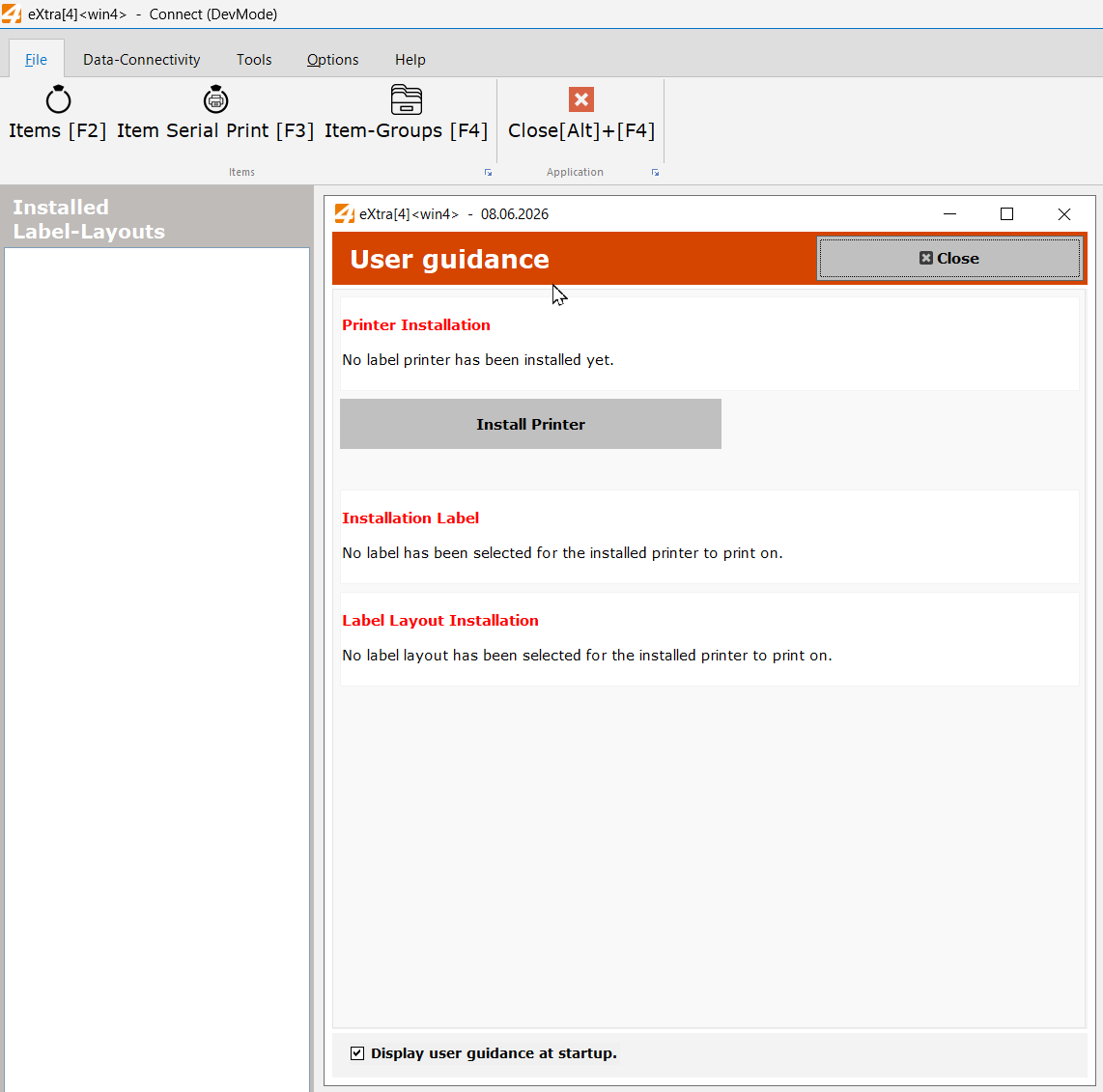
In the first step, the printers to be controlled by eXtra4<win4> are installed.
The ‘Install printer’ button takes you directly to the printer management screen.
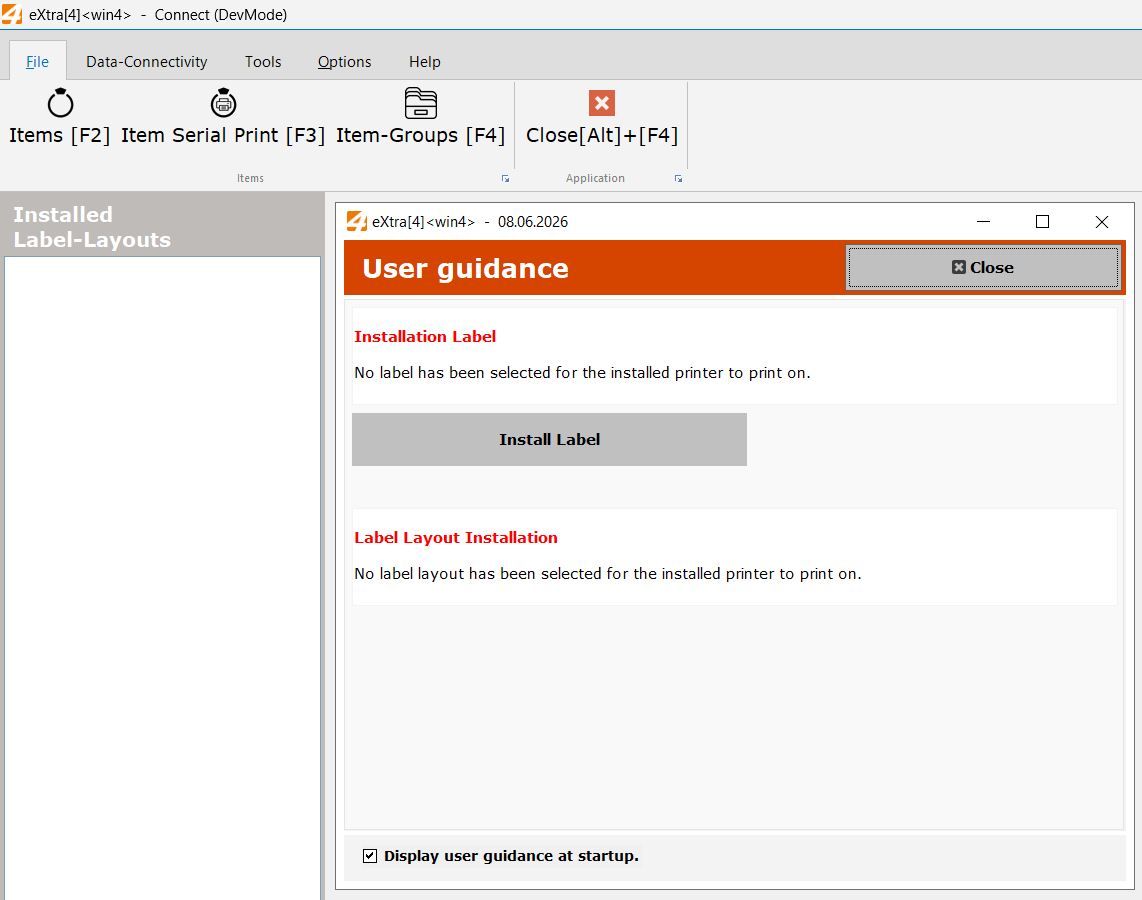
Next, the labels used in the printer are registered in the printer management system.
The ‘Install label’ button takes you directly to the label selection screen in the printer management
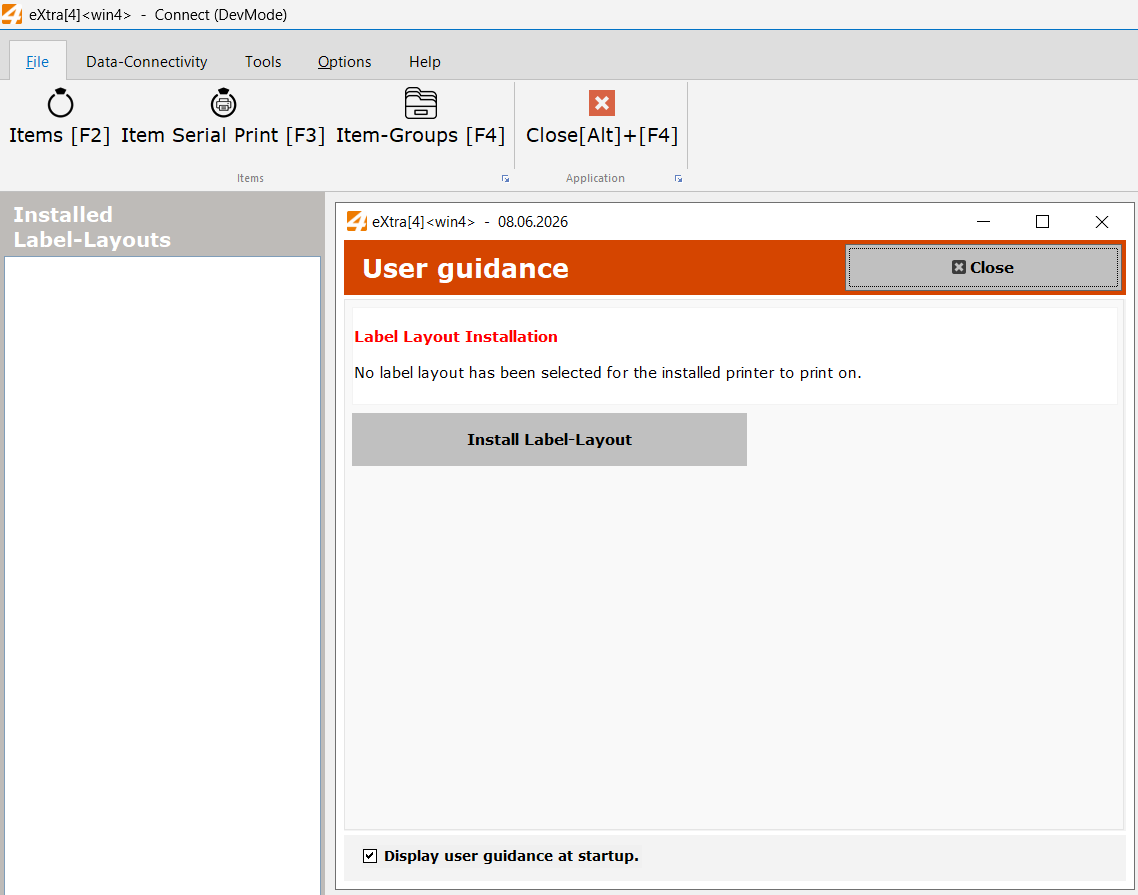
The final step is to select the layout that matches your printer and label in the Layout Wizard.
The ‘Install label layout’ button opens the wizard for selecting the layout.