 Label printing
Function - Updated: 10.02.2026
Label printingFunction - Updated: 10.02.2026
|
<< Click to Display Table of Contents >> Navigation: Functional Description >
|
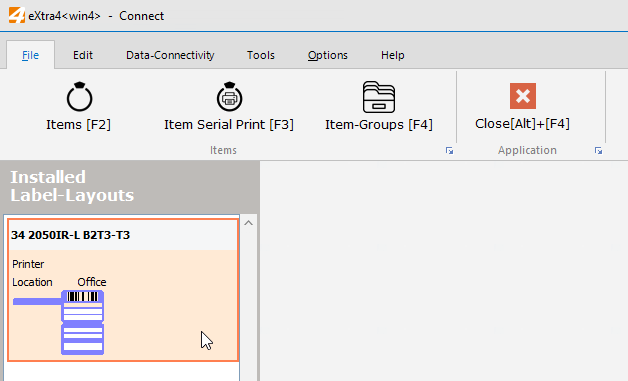
Select the label layout to be printed in the main window by double-clicking on it
Enter the data to be printed in the input fields of the label
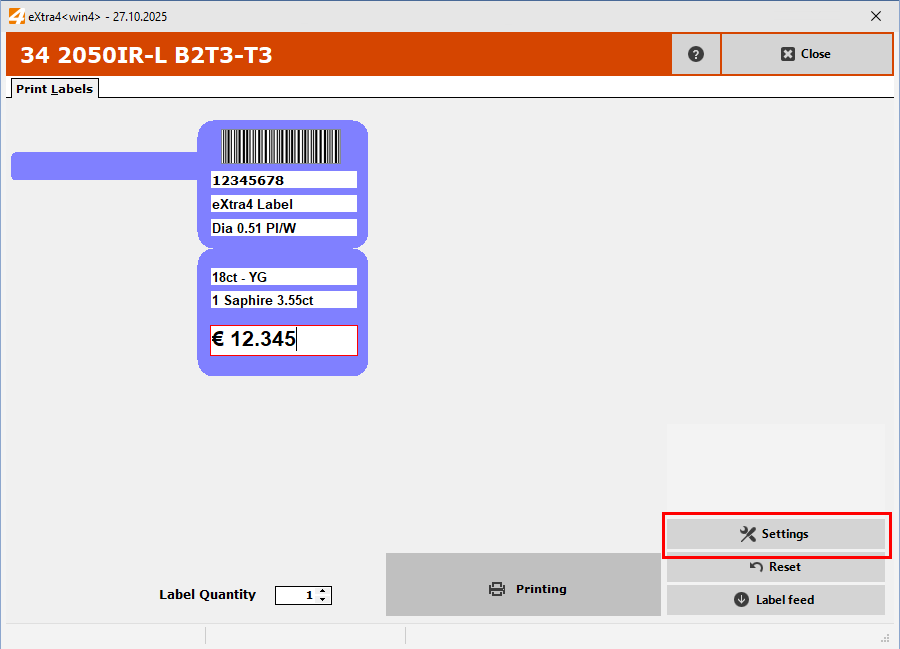
Finally, you can change the number of labels to be printed and trigger the print using the "Print" button.
When printing a label layout for the first time, the positioning of the print image is usually not exactly right within the label.
Press the button "Settings" and orrect the print position in the "Printer settings" tab sheet!
You can use the "Label options" tab sheet to enter default values with which the label layout is already filled in when it is opened.